Select a village. See the details.
Explore resource fields and the village centre on the map. Adjust village-specific settings without changing your other villages.
ANDROID · EXTENSION · WEB
Your villages in one place.
Your plans always within reach.
A free, ad-supported Travian bot and village manager for Android and Chrome. Queue construction, configure troop training and plan oasis raids per village. Use the same panel account to access server-saved settings from your phone, computer or web dashboard.
Set up Travian Panel on Android or Chrome, sign in to your Travian world, understand device permissions and check that villages and settings have synced.
Travian Panel is free to download and use. The Android app is funded by advertising; there is currently no paid tier or in-app purchase. Free does not mean ad-free, and the panel does not include paid items sold by the game.
Yes. Downloading and using Travian Panel currently requires no subscription or in-app purchase. Advertising funds the Android app. Travian's own paid features and items are separate.
No. An authorized Android app or desktop Chrome extension must be available with a valid game session. Saved plans remain on the server, but a saved plan is not proof that an action has run.
No. Travian Panel is independent of Travian Games. Automation may conflict with the game's rules; review those rules before use. We do not promise protection from account restrictions or uninterrupted operation.
TRAVIAN PANEL
Install the APK or Chrome extension. Use the same Google account on every device and in the web panel; your server settings and queues belong to this account.
Your Travian username and password are separate from Google sign-in. Save your game account in the app and enable automatic sign-in. Complete any additional verification manually.
Use Refresh to request fresh data from the running app or extension. Check the last update time, add an order and follow the result in the log. The web panel cannot perform game actions on its own.
YOUR GAME AT A GLANCE
Village selection, queues and the latest checks in one workspace.
Explore resource fields and the village centre on the map. Adjust village-specific settings without changing your other villages.
Queue upgrades and new buildings. After your device syncs, orders are checked during an eligible task cycle, with reasons shown for pending work.
See your own troops at home, travelling or away, alongside the last check time. Incomplete readings are not presented as confirmed totals.
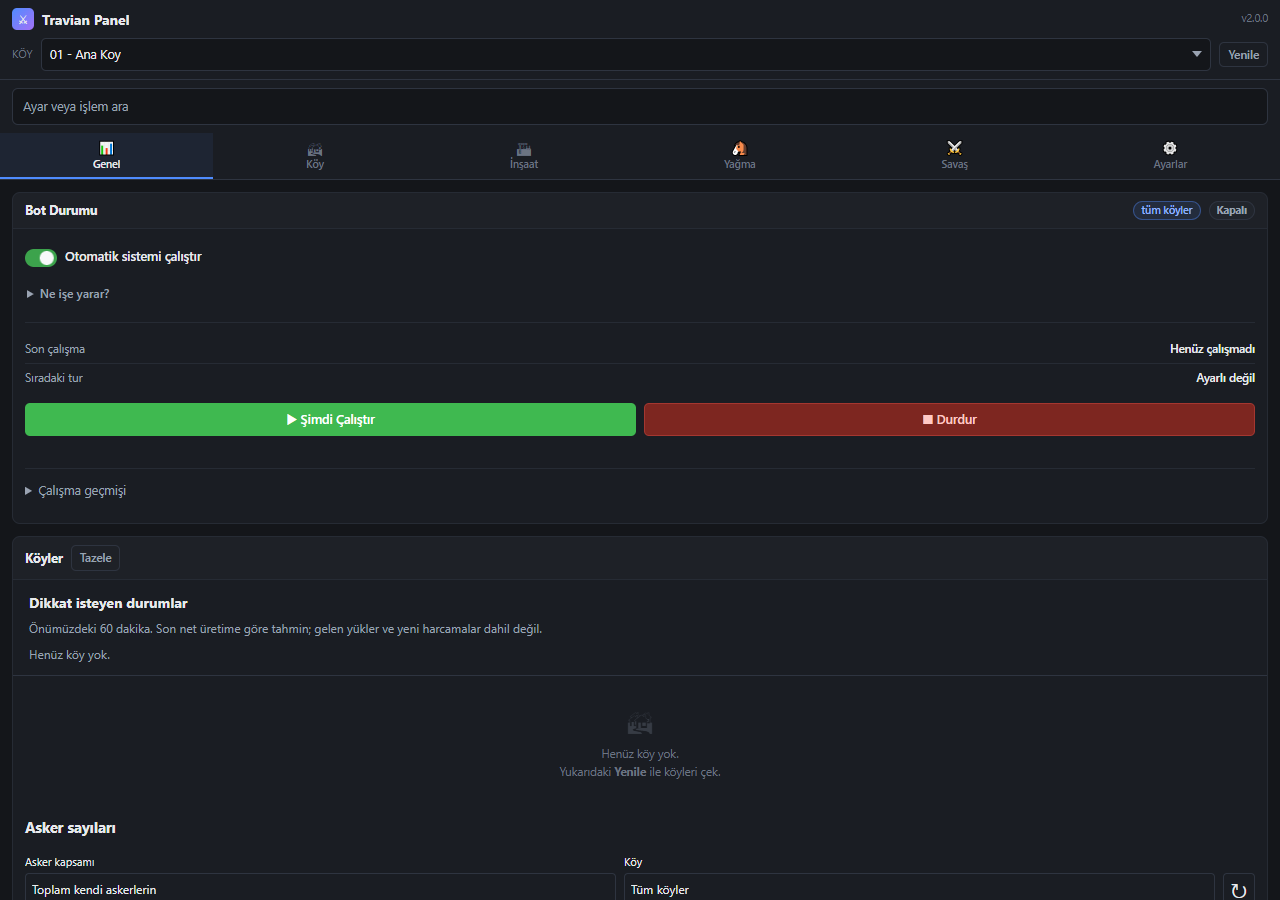
YOU SET THE PLAN
Configure construction, troop training, raids and night activity. Account-wide settings are kept separate from permissions that affect only the selected village.
Expandable help explains what each option affects and when it runs. The web panel saves orders; the running app or extension carries out game actions.
USER GUIDE
What features affect, when they run and why they may wait. Choose a topic, from your first sign-in to village management.
CHOOSE WHERE TO CONTINUE
ANDROID
Install from Google Play and receive updates from the same store.
Google Play ↗For existing APK installations. Do not install over the Play version.
Download APK ↓DESKTOP
Continue managing your villages with the Chrome extension on your computer.
Download Chrome ZIPZIP package · Chrome for desktop
Available extension: 2.0.1.521
WEB PANEL
View your villages, edit settings and review the latest logs from your devices.
Sign in with GoogleUse the same account as in the app
Night mode, troop training and village settings: read the user guide
It runs village management, building queues, troop training, hero tasks and raids using your settings. The web dashboard saves plans to the server; the running app or extension performs game actions with the active device’s authority. It is not an official Travian Games product.
No. The running app or extension syncs and processes the settings and orders you save online. Adding an order to the panel does not mean construction has already started in the game.
If installed from Play, use the Update button in Google Play. Do not install an APK over it, uninstall the app or clear its data.
How do I install the APK? Open the APK on your Android phone. If Android asks, allow installation only for the app used to open the download. Do not uninstall the old app when updating. Sign in with Google and check your villages.
Available extension: 2.0.1.521
First wait for ongoing dispatches and pending results to finish. Do not reload the extension or game tab while a result is uncertain.
Extract the new ZIP into the same folder and replace the files. Click Reload for Travian Panel on the Extensions page, then refresh your game tab. Do not remove the existing extension.
chrome://extensions
Downloading alone does not update the extension. Check the version in its header; the website’s Devices section shows the new version after the next connection.
The extension is not yet available in the Chrome Web Store. Install it from the ZIP package in Chrome on your computer. Chrome for Android does not support this installation method.
chrome://extensions manifest.json .Manifest not found: You may have selected the parent folder. Select the folder that directly contains manifest.json .
Download blocked: Do not disable security protection. Check the exact warning on the Chrome Downloads page. You can use the web panel while the issue is being resolved.
Counts show the last successful reading and check time. Even without Plus, the visible app or extension summary refreshes about once a minute. The website shows the last synced reading. Incomplete or old data is not shown as a current total.